
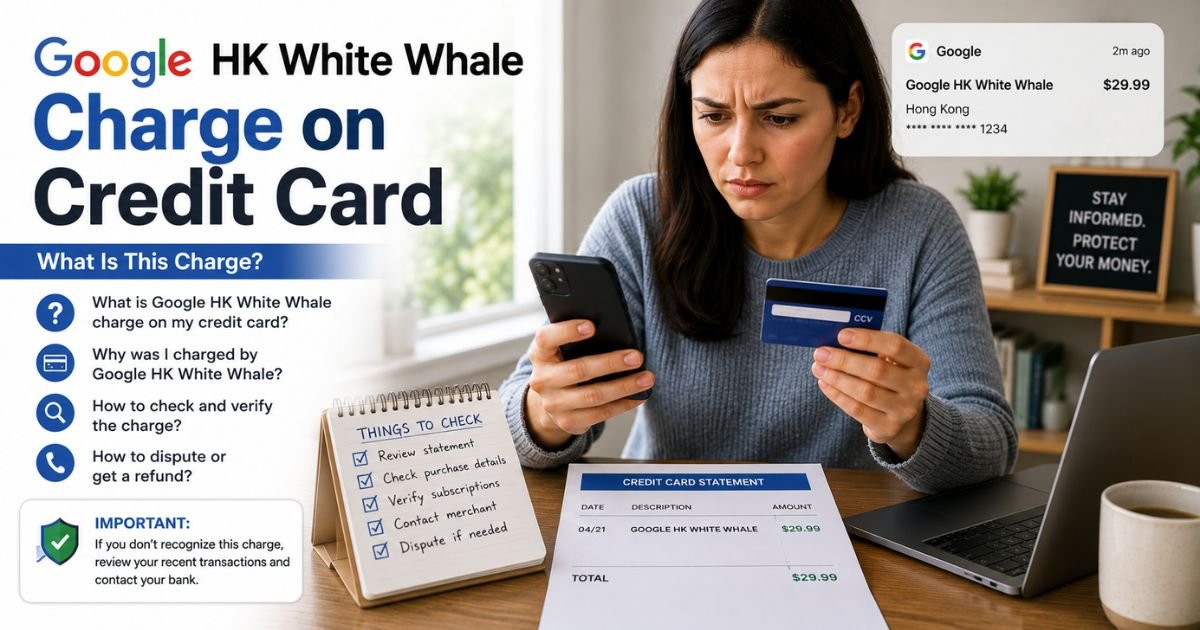
A Google HK White Whale charge on credit card can feel confusing if you don’t recall buying anything under that name. Unfamiliar Google-related charges are often legitimate purchases processed through Google Play.
This guide explains what the charge typically is, how to check it, and what you can do next.
Table of Contents
What Is the Google HK White Whale Charge?
Google HK White Whale is a billing descriptor used for purchases made through the Google Play Store. The “Google” part means Google processed the payment.
“HK White Whale” refers to the app developer, HONG KONG WHITE WHALE TECHNOLOGY CO., LIMITED.
This developer offers the CineToolkit app (also listed as CineToolkit:Caster&Roku Remote). The app provides tools for casting media, videos, or IPTV streams from a phone or tablet to a TV or Roku device.
It includes free features plus paid subscriptions or in-app purchases that unlock full tools, remove ads, and allow unlimited casting.
Descriptor variants you might see include:
- GOOGLE HK WHITE WHALE
- Google *HK WHITE WHA
- GOOGLE *HK WHITE WHALE
- Similar shortened versions with “White Whale” or “HK”
Typical charges are often small amounts (around $5 to $40 range in user reports) for subscriptions or one-time unlocks. Exact prices vary by plan and region.
Why Did This Charge Appear?
The charge usually appears because of activity tied to the CineToolkit app or a related service billed through Google Play. Common reasons include:
- You downloaded the free CineToolkit app and later started a subscription or made an in-app purchase.
- A free trial converted to a paid plan.
- Someone else in your household used a shared Google account or device and made the purchase.
- An accidental tap during app use triggered a subscription.
Google Play shows the developer name (or a version of it) on bank statements rather than the full app title. This is standard for third-party apps.
How to Verify the Charge
Follow these steps to confirm the source:
- Open the Google Play Store app or go to play.google.com on a computer and sign in with the Google account linked to the card.
- Tap your profile icon, then go to Payments & subscriptions > Budget & order history (or Subscriptions).
- Look for any entry matching the date and amount of the charge. It should list CineToolkit or a related item.
- Check your email (including spam) for receipts from Google Play or the developer.
- Visit payments.google.com, sign in, and review the Activity or Transactions section for more details.
- If nothing matches, note the exact statement descriptor and amount for the next steps.
Matching the date and amount to a Google Play record usually confirms it is a legitimate app-related charge.
Is the Charge Legitimate or Fraud?
Most Google HK White Whale charges are legitimate Google Play transactions for the CineToolkit app or similar tools from the same developer.
Google processes millions of such payments daily, and the descriptor follows their standard format of GOOGLE * followed by the developer or product name.
Common legitimate explanations
- Subscription or in-app purchase inside the CineToolkit casting app
- Accidental or forgotten trial conversion
- Purchase made on a shared device or account
Warning signs
- Multiple charges with no matching Google Play history across all your accounts
- Charges continuing after you canceled any related subscription
- No confirmation emails or order records from Google
When to contact the bank
If you find no matching purchase in any Google account and the developer has no record, treat it as potentially unauthorized and contact your card issuer promptly.
How to Cancel Google HK White Whale / CineToolkit
Cancellation happens through Google Play, not directly with the developer in most cases.
- Open the Google Play Store app and sign in.
- Tap your profile icon > Payments & subscriptions > Subscriptions.
- Find the CineToolkit or related subscription.
- Tap Cancel subscription and follow the prompts.
- Confirm the cancellation. Access usually continues until the end of the current paid period.
- For extra confirmation, email the developer at whitewhale2023@outlook.com with your order details if needed.
If the charge was a one-time purchase rather than a subscription, no further billing should occur once you stop using paid features.
Can You Get a Refund?
Google Play generally allows refund requests for accidental purchases or within a short window after the charge (often 48 hours, though policies can vary).
Go to the order in your Google Play purchase history, select the item, and choose Request a refund if the option appears.
Outside the standard window, refunds are less common and depend on Google’s review or the developer’s discretion.
Provide the order number, date, and reason when requesting. If Google declines and you believe the charge was unauthorized, escalate to your card issuer.
What to Do If the Charge Is Unauthorized
- Check every Google account you own (or that family members use) for matching purchases.
- Cancel any active CineToolkit subscription immediately through Google Play.
- Request a refund through Google Play order history if the option is available.
- Contact Google support via the Play Store help tools or payments.google.com if the charge does not appear in any account.
- Report the charge to your credit card issuer as unauthorized and follow their dispute process. Keep screenshots of your Google Play history and any communications.
- Consider changing passwords and reviewing connected devices or payment methods on your Google account.
Act within the time limits set by your card issuer (often 60 days from the statement date under U.S. rules).
Prevention Tips
- Review Google Play order history regularly, especially after downloading free apps that offer in-app purchases.
- Turn off “Purchase authentication” prompts only if you fully trust every device user, or keep them enabled.
- Use Google Play’s spending limits or require authentication for all purchases.
- Uninstall apps you no longer use and cancel unused subscriptions promptly.
- Enable email or app notifications for Google Play purchases.
- Avoid saving payment methods on shared or public devices.
FAQs: Google HK White Whale Charge on Credit Card
Q. What company is behind the Google HK White Whale charge?
A. It is typically a Google Play purchase from the developer HONG KONG WHITE WHALE TECHNOLOGY CO., LIMITED, most often linked to the CineToolkit casting app.
Q. Why does it say Google HK instead of the app name?
A. Google Play uses the developer name (or a shortened version) on bank statements. “HK White Whale” reflects the developer’s company name and regional billing.
Q. How do I stop future charges from this descriptor?
A. Cancel the related subscription in the Google Play Store under Payments & subscriptions > Subscriptions. This stops renewals.
Q. Can I get a refund if I didn’t mean to subscribe?
A. Google Play often allows refund requests for accidental purchases within a limited time. Check your order history and request a refund if the option is available. Outside that window, success depends on Google’s review.
Conclusion
A Google HK White Whale charge on credit card is usually a legitimate Google Play transaction for the CineToolkit app or a similar tool from HONG KONG WHITE WHALE TECHNOLOGY. Checking your Google Play purchase history and subscriptions almost always identifies the source.
If the charge does not match any activity, cancel any related subscriptions, request a refund through Google when possible, and contact your card issuer if needed. Reviewing Google Play history after downloading free apps helps avoid surprise charges in the future.
Disclaimer: This article is for informational purposes only and is not financial or legal advice. Policies, refund windows, and descriptors can vary by Google account, region, and card issuer. Always verify details directly with Google Play, the developer, or your bank for your specific situation.
Meet the Author
