
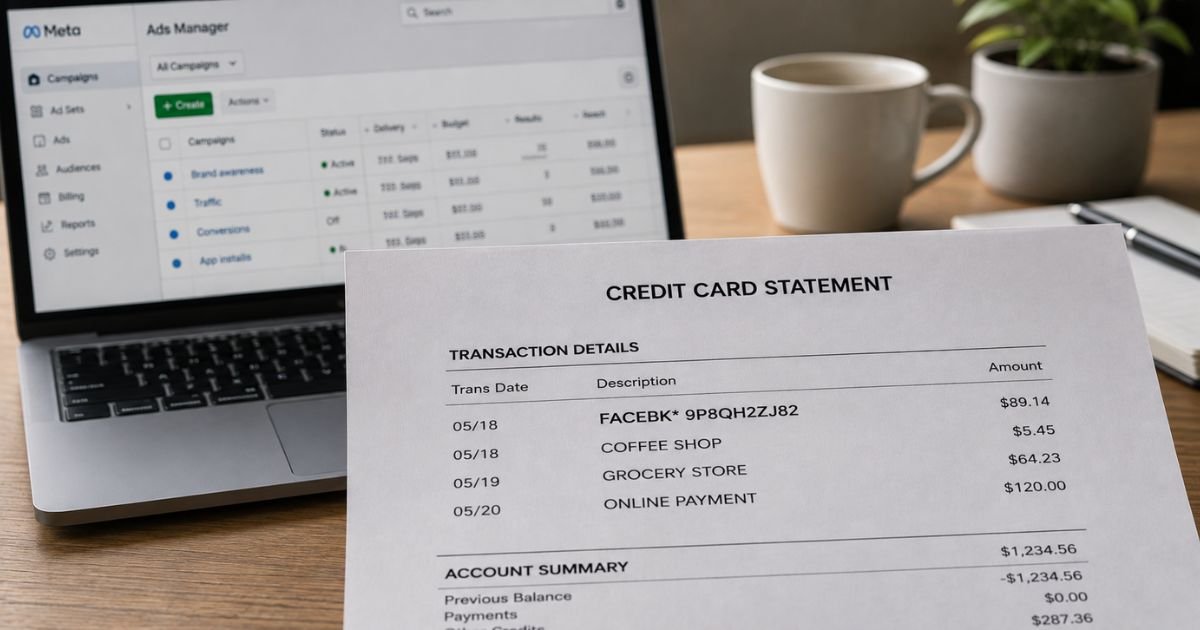
Seeing a FACEBK charge on credit card statement can feel confusing if you don’t remember making a purchase. The shortened name often leads people to wonder whether it is legitimate or something to dispute.
This article explains what the charge means, why it appears, how to verify it, and what to do if you need to stop or dispute it.
Table of Contents
What Is the FACEBK Charge?
FACEBK is Meta’s official shortened billing name for many transactions processed through Facebook and Instagram. The most common reason is advertising spend.
When you (or someone with access to your ad account) run ads, boost a post, or hit a billing threshold, the charge often appears as FACEBK* followed by a unique reference code.
Meta’s own help center confirms that ad charges typically show as:
- FACEBK* followed by a 10-character reference number
- FACEBOOK INC. followed by a reference number
Other possible sources include Meta Pay transactions, in-app purchases, subscriptions, creator support (Stars), or Marketplace-related payments.
The amount can range from a few dollars for a small boost or test charge to larger sums for ongoing ad campaigns.
Why Did This Charge Appear?
Common legitimate reasons include:
- You or a business account ran Facebook or Instagram ads
- You boosted a post or page and reached a billing threshold
- The monthly billing date arrived for accumulated ad spend
- A temporary authorization charge to verify a new payment method (these usually reverse)
- An in-app purchase or subscription on Facebook or Instagram
- A family member, employee, or agency used a shared payment method for ads
- A Meta Pay transaction or donation
Meta charges advertisers when they hit a spending threshold or on their monthly billing date, whichever comes first. New ad accounts often start with a low threshold (such as $10 or $25) that increases over time.
How to Verify the Charge
Follow this checklist:
- Note the exact date, amount, and full descriptor (including any reference code after FACEBK*).
- Log into Meta Ads Manager on a desktop and go to Billing & payments > Payment activity.
- Match the date, amount, and reference number from Ads Manager to your credit card statement.
- Check your email for receipts or billing notifications from Meta around the same date.
- Ask anyone who has access to your Facebook/Instagram business or ad accounts whether they ran ads or boosted content.
- Review Meta Pay activity or any subscriptions linked to your Facebook account if the charge does not appear in Ads Manager.
Matching the reference number confirms the charge is from your (or an authorized) Meta account.
Is It Legitimate or Fraud?
In the large majority of cases, a FACEBK charge is legitimate and tied to Meta advertising or a related payment. Meta is a major, established company, and this descriptor is their standard way of billing.
Common legitimate scenarios:
- Active or recent ad campaigns on Facebook or Instagram
- A boosted post that hit a spending threshold
- A payment method verification charge that later reverses
- Authorized use by a business partner or agency
Warning signs that need investigation:
- No one with access to your accounts ran any ads
- Multiple unexpected charges appear in a short period
- You have never used Meta Ads Manager or boosted content
- The charge continues after you removed the payment method
If the charge does not match any activity in Ads Manager or your accounts, treat it as potentially unauthorized.
How to Cancel or Stop Future Charges
To stop future FACEBK charges related to advertising:
- Log into Meta Ads Manager.
- Go to Billing & payments and review active payment methods.
- Pause or turn off all active ad campaigns and boosted posts.
- Remove the credit card from the payment methods section.
- Set spending limits or disable automatic payments if available.
- Check for any active subscriptions or Meta Pay settings and cancel them.
- Monitor your next statement to confirm no further charges appear.
If the charge is from a compromised ad account, secure the account immediately by changing passwords and enabling two-factor authentication.
Can You Get a Refund?
Refund eligibility depends on the situation:
- Legitimate ad spend that you authorized is generally not refundable once the ads have run.
- Temporary authorization charges should reverse automatically within a few days.
- Unauthorized charges or clear billing errors can be disputed.
- Contact Meta support through Ads Manager or the Business Help Center first with the reference number and transaction details.
If Meta does not resolve the issue, file a dispute with your credit card issuer under the Fair Credit Billing Act.
Provide the date, amount, and any evidence from Ads Manager.
Act within the required time limits (usually 60 days of the statement date for billing errors).
What to Do If the Charge Is Unauthorized
If you confirm no one authorized the charge:
- Log into Meta Ads Manager (if accessible) and remove the payment method immediately. Pause all campaigns.
- Change passwords on your Facebook/Instagram accounts and enable two-factor authentication.
- Contact Meta support through the Business Help Center and report the unauthorized activity.
- Call your credit card issuer’s fraud department, report the charge, and request a dispute.
- Ask the issuer to monitor the account for similar activity.
- Document the date, amount, reference code, and all conversation details.
Report the issue promptly to limit potential liability.
Prevention Tips
- Review credit card and bank statements every month.
- Turn on transaction alerts for new merchants or amounts above a set threshold.
- Use a dedicated business card or virtual card number for Meta ads when possible.
- Set strict daily or lifetime budgets on all ad campaigns.
- Limit who has access to your Ads Manager and payment methods.
- Enable two-factor authentication on all Meta accounts.
- Regularly check Payment activity in Ads Manager.
- Remove stored payment methods from accounts you no longer use for advertising.
- Monitor email notifications from Meta for unexpected billing activity.
Common FACEBK Charge Types
| Type | Typical Trigger | What to Check in Ads Manager |
|---|---|---|
| Ad campaign spend | Reached threshold or billing date | Payment activity and campaigns |
| Boosted post | Promotion reached budget | Boost history and billing |
| Payment method verification | Adding or updating a card | Usually reverses automatically |
| In-app or Meta Pay | Purchase or subscription | Account payment history |
Statement Descriptor Variations
| Descriptor Example | Meaning |
|---|---|
| FACEBK* [reference code] | Standard Meta ad or payment charge |
| FACEBOOK INC.* [reference] | Full company name version |
| FACEBKADS or FACEBKPAYMENT | Advertising or general payment |
| FACEBK* [code] MENLO PARK | Includes Meta headquarters location |
FAQs: FACEBK Charge on Credit Card
Q. What does FACEBK mean on my credit card?
A. FACEBK is Meta’s billing descriptor for charges related to Facebook and Instagram advertising, boosted posts, or certain other payments processed through their platforms.
Q. Why was I charged FACEBK if I didn’t run any ads?
A. Someone with access to your account may have boosted a post or started a campaign. It could also be a temporary authorization charge that should reverse, or in rare cases an unauthorized use of your payment method.
Q. How do I stop FACEBK charges?
A. Pause or turn off all ad campaigns in Meta Ads Manager, remove the credit card from payment methods, and cancel any related subscriptions. Monitor your next statement to confirm.
Q. Can I get a refund for a FACEBK charge?
A. Authorized ad spend is generally not refundable. Temporary authorizations should reverse on their own. Unauthorized charges can be disputed with Meta and your card issuer. Contact support with the reference number from your statement.
Conclusion
A FACEBK charge on credit card is typically a legitimate payment to Meta for Facebook or Instagram advertising or a related transaction.
Verify it by matching the reference number and amount in Meta Ads Manager, pause campaigns and remove the card if you want to stop future charges, and contact Meta or your card issuer if the charge is unexpected or unauthorized.
Checking Ads Manager regularly and using spending limits helps prevent surprises with these charges.
Disclaimer: This article is for informational purposes only and is not financial, legal, or professional advice. Billing practices, thresholds, and refund policies can change. Always verify details directly in Meta Ads Manager, with Meta support, or with your financial institution.
Meet the Author
