
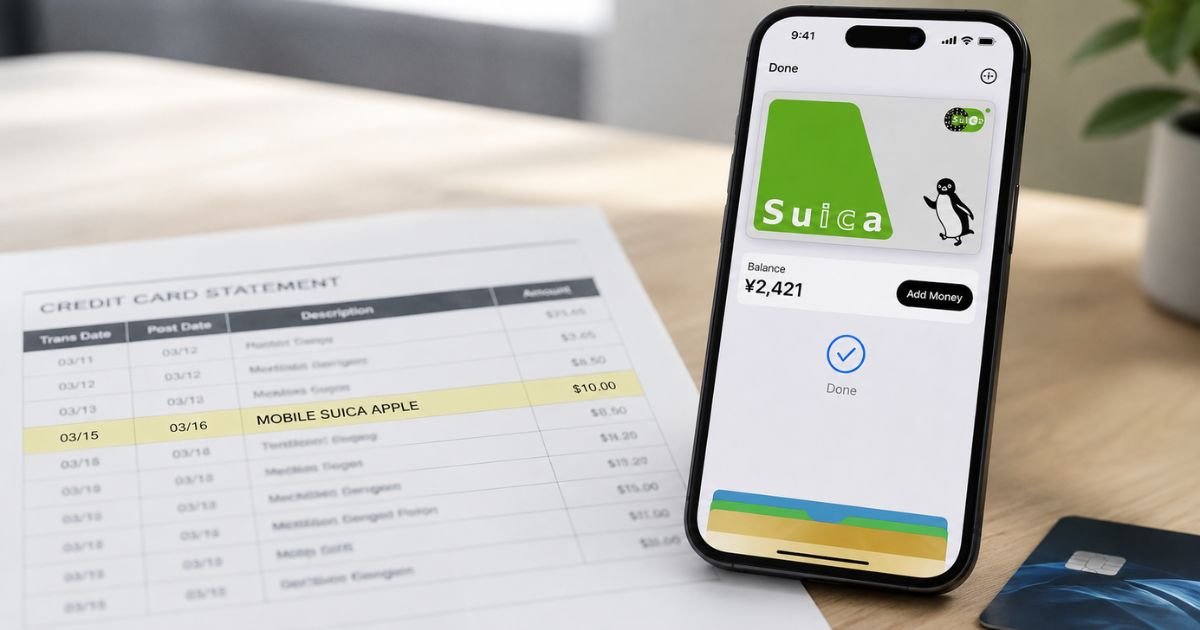
Noticing a Mobile Suica Apple charge on credit card can feel confusing, especially if you have not traveled to Japan recently or do not remember adding money to a transit card.
In most cases the charge is a legitimate top-up of a digital Suica card through Apple Wallet. Sometimes it signals unauthorized activity.
This article explains exactly what the charge is, why it appears, how to check it, and the practical steps to take if something looks wrong.
Table of Contents
What Is the Mobile Suica Apple Charge?
Mobile Suica is the digital version of Japan’s Suica IC card, operated by East Japan Railway Company (JR East).
You can add it to Apple Wallet on an iPhone or Apple Watch and use it for trains, subways, buses, convenience stores, and many shops across Japan.
When you add money (called “charging” or topping up) to the Suica balance, the payment comes from the credit or debit card linked to your Apple Pay / Apple Wallet.
That payment often appears on your statement as:
- MOBILE SUICA APPLE
- MOBILE SUICA APPLE TOKYO
- SUICA APPLE
- SUICA APPLE PAY
- Similar short variations
The amount is usually shown in Japanese yen and then converted by your card issuer, so the dollar figure may include a foreign-transaction fee.
Why Did This Charge Appear?
Common reasons include:
- You (or someone with access to your device) created a new Mobile Suica or Welcome Suica and funded it.
- You topped up the balance while traveling or planning a trip to Japan.
- Multiple small top-ups happened during a trip.
- A family member or authorized user on the card added money.
- A top-up attempt failed but still created a temporary authorization that later posted or reversed.
- Someone added your credit card to another Apple device and used it to fund a Suica (a known form of Apple Pay fraud).
Suica itself is prepaid electronic money. The charge you see is almost always the act of loading money onto the card, not a monthly subscription.
How to Verify the Charge
Follow these steps in order:
- Open the Wallet app on your iPhone or Apple Watch and select the Suica card.
- Check the current balance and the recent transaction history for matching dates and yen amounts.
- Look at the payment card shown for each top-up (last four digits).
- Search your email for any Apple or Suica confirmation messages.
- Ask every person who has access to your devices or credit card whether they added funds.
- Contact your credit card issuer and request the original yen amount, merchant location, and whether the charge is pending or posted.
If the date, amount, and balance change line up with activity in Wallet, the charge is almost certainly legitimate.
Is It Legitimate or Fraud?
The charge is legitimate when it matches a top-up you or an authorized user made and the Suica balance increased accordingly.
Warning signs that point toward unauthorized activity:
- No Suica card appears in your Apple Wallet.
- You have never traveled to Japan and no one in the household recognizes the charge.
- Multiple unexpected Mobile Suica charges appear in a short time.
- Your bank flags the transactions as coming from a different device or location.
- A top-up failed in Wallet but the money still left your credit card and never reversed.
If any of these apply, treat the charge as potentially unauthorized and act quickly.
How to Stop Future Charges
There is no recurring subscription to cancel. To prevent more top-ups:
- Open Apple Wallet and remove any credit cards you no longer want used for Suica.
- Delete the Suica card from Wallet if you no longer need it (the remaining balance stays linked to your Apple ID and can be restored later on a compatible device).
- Turn off Express Mode or double-check authentication settings so every top-up requires Face ID, Touch ID, or a passcode.
- Monitor your credit card for any new attempts.
Simply removing the Suica does not refund any balance already loaded.
Can You Get a Refund?
Refund rules are strict because Suica is prepaid electronic money.
- Successful top-ups are generally non-refundable.
- Failed top-ups should reverse automatically; contact your card issuer if the money does not return within a few business days to a couple of weeks.
- Remaining Suica balance can sometimes be withdrawn, but only to a Japanese bank account and usually with a small fee. Most U.S. travelers cannot complete this process.
- Welcome Suica (the tourist version) balances are typically non-refundable and expire after a set period.
Your best path for an unrecognized or unauthorized charge is to dispute it directly with your credit card issuer rather than expecting a refund from JR East or Apple.
What to Do If the Charge Is Unauthorized
- Open Apple Wallet and check whether a Suica card exists. Remove any unfamiliar cards.
- Contact your credit card issuer immediately, report the charge as unauthorized, and ask them to investigate and reverse it.
- Request a new card number if the issuer recommends it.
- Review recent Apple ID sign-ins and devices at appleid.apple.com and sign out of any you do not recognize.
- Change your Apple ID password and enable two-factor authentication if it is not already on.
- Keep records of all reference numbers and emails.
- Follow up with the card issuer until the dispute is resolved.
Acting within the first 60 days generally gives you the strongest protection under U.S. credit card rules.
Prevention Tips
- Keep transaction alerts turned on for every credit card.
- Only add payment cards to Apple Wallet that you actively monitor.
- Require authentication for every Apple Pay transaction.
- Avoid saving cards on shared or public devices.
- Review Apple Wallet and credit card statements at least weekly while traveling.
- Use a travel-specific credit card with no foreign-transaction fees when possible.
- Remove Suica or other transit cards from Wallet once your trip ends if you will not reuse them soon.
- Never share one-time verification codes that appear to come from Apple or your bank.
Common Descriptor and Situation Guide
| Descriptor Example | Typical Meaning | Usual Action |
|---|---|---|
| MOBILE SUICA APPLE | Top-up via Apple Wallet | Check Wallet balance history |
| MOBILE SUICA APPLE TOKYO | Same, often with location code | Verify date and yen amount |
| SUICA APPLE or SUICA APPLE PAY | Top-up or related Apple Pay charge | Match to Suica activity |
| Multiple small charges | Repeated top-ups or possible fraud | Review all devices and alerts |
FAQs: Mobile Suica Apple charge on credit card
Q. Why does a Mobile Suica Apple charge appear if I never went to Japan?
A. Someone with access to your Apple ID or payment card may have created and funded a Suica, or your card details were added to another device. Check Wallet and contact your card issuer right away.
Q. Can I get the money back from a Suica top-up?
A. Successful top-ups are prepaid and usually non-refundable. Failed charges should reverse. For unauthorized charges, dispute them with your credit card company.
Q. How do I remove Mobile Suica from my iPhone?
A. Open the Wallet app, select the Suica card, tap the more button, and choose Remove Card. The balance remains available if you add Suica again under the same Apple ID.
Q. Is Mobile Suica a subscription that keeps charging me?
A. No. It is prepaid electronic money. Charges only occur when you (or someone else) deliberately top up the balance.
Conclusion
A Mobile Suica Apple charge on credit card is normally a top-up of Japan’s digital Suica transit card through Apple Wallet.
Match the charge against your Wallet history first. If nothing lines up, treat it as unauthorized, secure your Apple ID, and dispute the charge with your card issuer.
Quick verification and clear records are the fastest way to resolve the issue and protect your account.
Disclaimer: This article is for informational purposes only and is not financial or legal advice. Policies of JR East, Apple, and card issuers can change. Always confirm details directly with your credit card company and official support channels.
Meet the Author
