
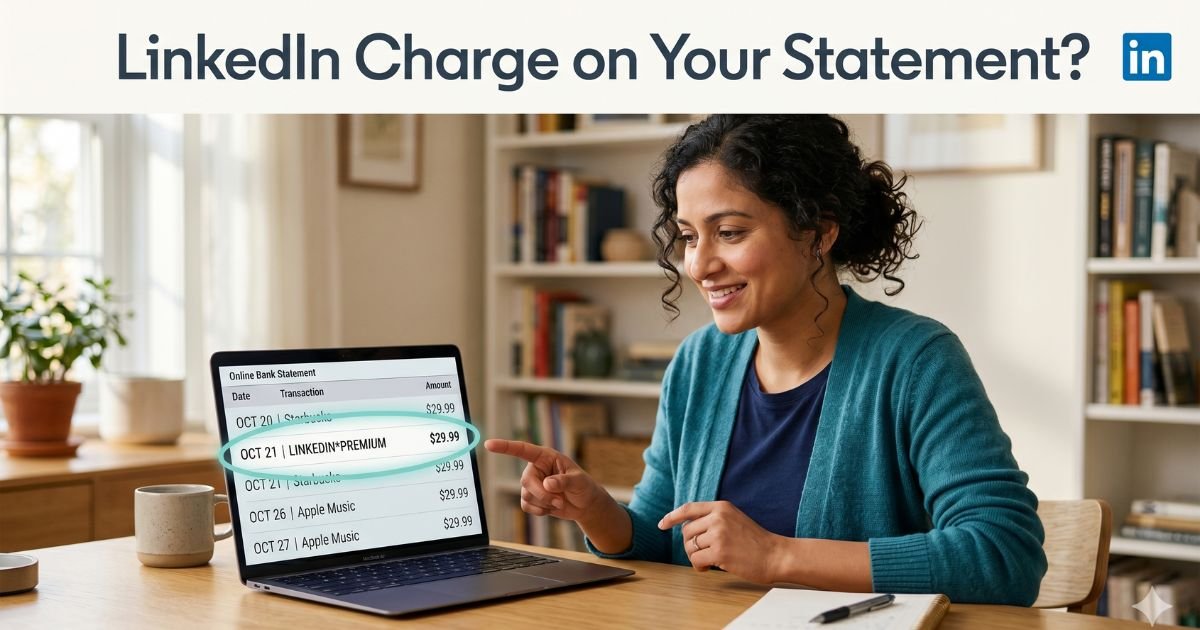
You open your credit card statement or app notification and there it is — a charge you don’t remember: “LINKEDIN*PREMIUM” or something similar. Your heart sinks for a second. *Did I sign up for this? Is it a scam?*
You’re not alone. Thousands of people every month spot a LinkedIn charge on credit card and wonder exactly what it is and what to do next.
The good news? Most of the time it’s completely legitimate — usually a Premium subscription you started (or a free trial that quietly turned into a paid plan).
We’ll walk you through exactly what a LinkedIn charge on your credit card means, the most common reasons it shows up, how to cancel it in minutes, and what to do if the charge truly doesn’t belong to you.
Table of Contents
What Does a LinkedIn Charge on Credit Card Mean?
LinkedIn is the world’s largest professional networking site, owned by Microsoft. While the basic account is free, many people try LinkedIn Premium features during a free trial or for job hunting, networking, or sales. When the trial ends — or when you sign up for a paid plan — LinkedIn automatically bills the card you have on file.
These charges are recurring (monthly or yearly) and will keep appearing until you cancel. They are not fraud in the vast majority of cases, but they can feel surprising if you forgot about the trial or shared a card with family.
Bottom line: A LinkedIn charge on credit card is almost always for a Premium subscription or related professional tool.
Common Reasons You’re Seeing This Charge
Here are the eight most frequent causes:
- You (or someone using your card) started a free trial of LinkedIn Premium and didn’t cancel before it ended.
- You upgraded to Premium Career, Business, or Sales Navigator for better job tools or leads.
- A recruiter or sales tool like Recruiter Lite or Learning subscription renewed.
- You posted a promoted job or ran ads on LinkedIn.
- An old account still has your payment details saved and auto-renews.
- A family member or colleague added your card to their account.
- You signed up through the mobile app (Apple or Google billing) and forgot.
Take a 42-year-old IT manager in California. He tried LinkedIn Premium Career for one month during a job switch two years ago. Life got busy, he never logged back in, and suddenly small monthly charges started appearing. “I thought I cancelled it,” he told his wife. A quick check of his account showed the subscription was still active.
How LinkedIn Charges Appear on Your Statement
LinkedIn (and its payment processor) uses several clear descriptors. You might see any of these:
| Descriptor on Statement | What It Usually Means | Typical Amount (approx.) |
|---|---|---|
| LINKEDIN*PREMIUM | Premium Career / Business plan | ₹1,500–₹5,000/mo |
| LINKEDIN*SUBSCRIPTION | General recurring subscription | Varies |
| LINKEDIN*SALES NAVIGATOR | Sales Navigator tool | Higher tier |
| LINKEDIN*RECRUITER or *CAREER | Recruiter or job tools | Varies |
| LINKEDIN*LEARNING | LinkedIn Learning courses | Monthly/annual |
| MSFT*LINKEDIN or LINKEDIN IRELAND | Microsoft billing / international | Same as above |
| LINKEDIN 650-687-3600 | LinkedIn’s U.S. billing phone | Any paid service |
Pro Tip
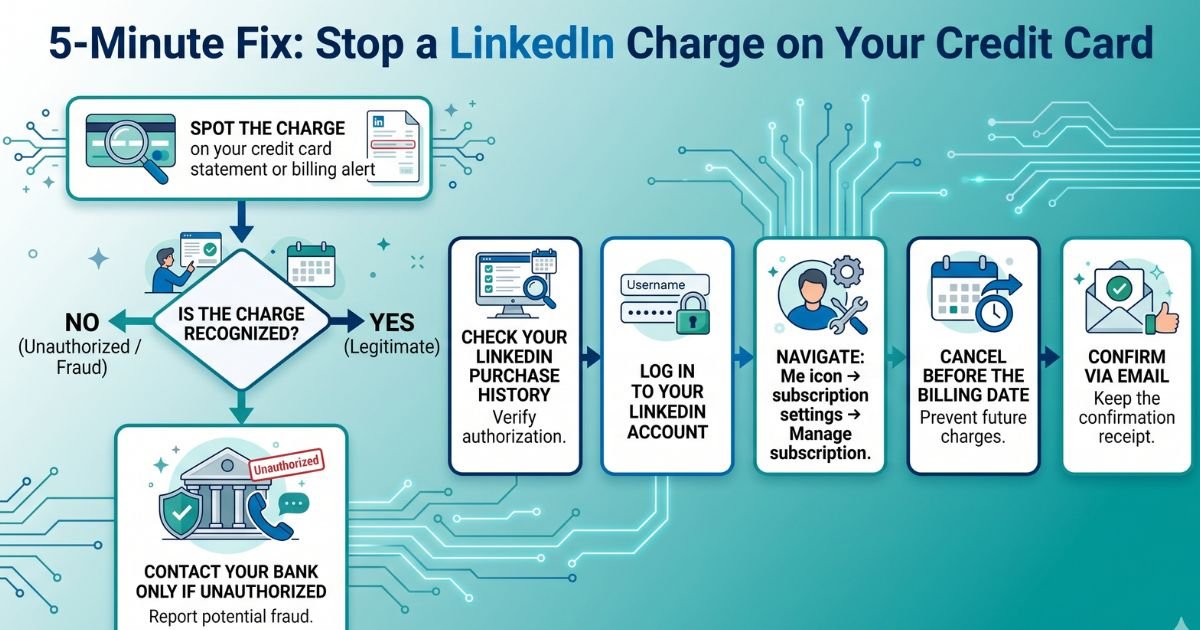
Log into your LinkedIn account right now and go to Me → Premium features → Purchase history. You’ll see the exact date, amount, and order ID (starts with “P”). Match it to your statement in under 60 seconds.
How to Cancel Your LinkedIn Subscription
Cancelling takes just a few minutes and works whether you bought directly from LinkedIn or through an app store.
If you bought directly on LinkedIn (most common)
- Log in at linkedin.com on a computer or phone browser.
- Click the Me icon at the top right.
- Choose Premium features.
- Click Subscription details (or Manage subscription).
- Select Cancel subscription → choose a reason → confirm.
You’ll keep Premium access until the end of the current billing period.
If you bought through Apple App Store or Google Play
Cancel directly in your phone’s subscription settings — LinkedIn can’t cancel these for you.
Common Mistake
Many people cancel on their phone but forget they signed up through the app store. The charge keeps coming because the cancellation didn’t reach Apple or Google. Always double-check the purchase method in your LinkedIn purchase history.
After cancellation, LinkedIn will email you a confirmation. Save it.
What to Do If the Charge Is Unauthorized or You Want a Refund
Sometimes the charge really isn’t yours. Here’s the calm, effective path:
- First, check your LinkedIn purchase history (link above).
- Ask family members or anyone who might have used the card.
- If it’s still unexplained, contact LinkedIn support through the Help Center and reference your order ID (the “P” number on your statement).
- For immediate help, dispute the charge with your bank or card issuer. In India, most banks let you file a dispute online or by calling the number on the back of your card.
- Consider removing the card from your LinkedIn account entirely after cancellation.
LinkedIn’s refund policy is case-by-case, but they often grant one-time courtesy refunds for recent accidental renewals.
Stop a LinkedIn Charge on Your Credit Card
FAQs: LinkedIn Charge on Credit Card
Q. Why is there a LinkedIn charge on my credit card when I never signed up for Premium?
A. Most people start with a free trial that automatically converts to paid. Or someone else (family, colleague) used the card on their account. Check your LinkedIn purchase history first — the charge will match a subscription there.
Q. Can I get a refund for a LinkedIn charge on my credit card?
A. Yes, in many cases. Contact LinkedIn support with your order ID (P-number on the statement) or dispute it directly with your bank. They often approve one-time refunds for recent charges if you explain it was unintentional.
Q. How do I stop LinkedIn from charging my card every month?
A. Cancel through your LinkedIn account settings (Me → Premium features → Manage subscription). Remove the saved card afterward so no future surprises can happen. If billed through Apple or Google, cancel in your phone’s subscription manager too.
Conclusion
A LinkedIn charge on credit card is usually just an active subscription you can stop in minutes. The key takeaways: check your purchase history, cancel before the next billing date, and remove the card from your account for good measure.
Take five minutes today — open LinkedIn, follow the steps above, and put this behind you. While you’re at it, spend two minutes scanning the rest of your statement. Small actions like this protect your money every month.
Disclaimer: The content on ExplainCharges.com is for informational and educational purposes only and does not constitute financial, legal, or professional advice. We are not affiliated with any companies or services mentioned. The information provided may not apply to your specific situation. If you suspect unauthorized charges or fraud, contact your bank or credit card issuer immediately. Always verify details directly with the source and consult a qualified professional if needed.
Meet the Author
