
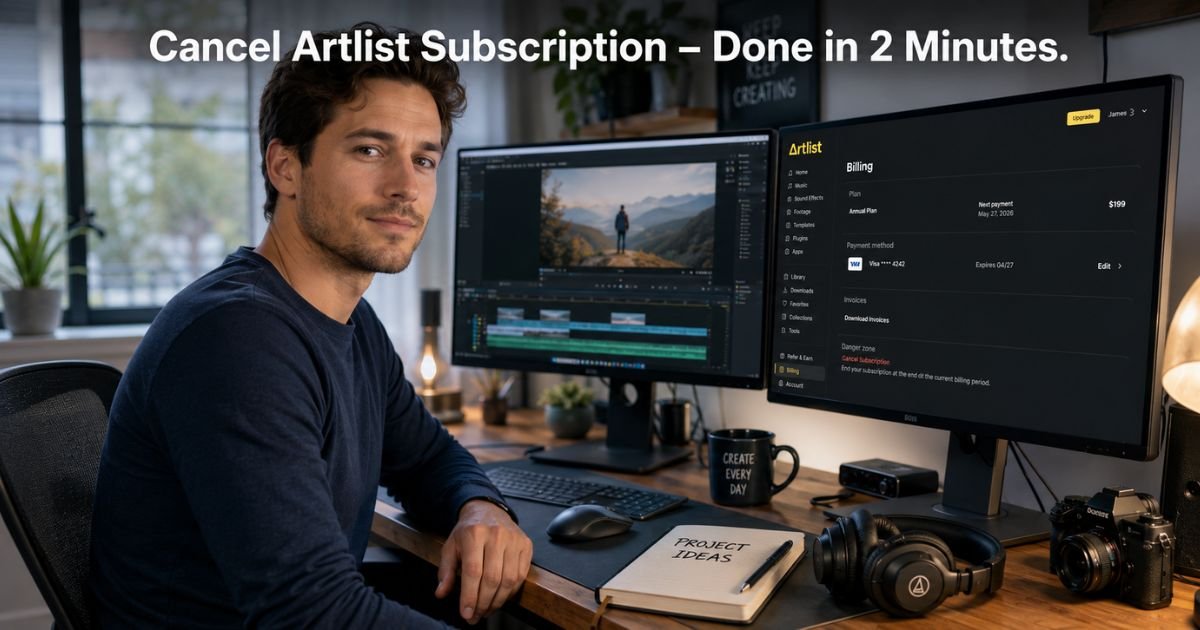
If you have been searching for how to cancel Artlist subscription, you have come to the right place.
Whether your latest project wrapped up, your budget changed, or you are exploring other music libraries, canceling should not feel like a hassle. Artlist makes the process self-service and straightforward right from your account.
In this complete guide, I will show you exactly how to stop future charges, what happens to your access, and smart ways to handle the transition without losing valuable assets.
Table of Contents
Why Canceling Your Artlist Subscription Feels So Easy
Artlist built its reputation on giving creators unlimited royalty-free music and footage with a simple monthly or yearly plan. That same simplicity carries over when it is time to cancel.
You do not need to call anyone or fill out long forms. Everything happens inside your Artlist account in just a few clicks.
Canceling only stops the automatic renewal. Your current plan stays active until the end of the billing period you already paid for. That means you can still download tracks and finish projects without panic.
Many creators cancel after a big video or ad campaign ends. Others switch to a different library or take a break during slower seasons. No matter your reason, the steps stay the same.
What Happens When You Cancel Artlist Subscription
Before you hit that button, it helps to know exactly what to expect.
- Your subscription continues until the last day of the current billing cycle.
- You keep full access to download and use any tracks you have already added to projects.
- After the period ends, you lose the ability to download new music or footage.
- Previously downloaded files remain yours under the original license terms.
- No cancellation fees apply. You simply stop paying going forward.
If you ever want to restart later, you can resubscribe anytime. Your account and past downloads stay safe.
Exact Steps: How to Cancel Artlist Subscription
Ready to cancel? Follow these precise steps on your computer or laptop for the smoothest experience.
- Go to artlist.io and log in to your account.
- On the homepage, look for the Toolkit menu (usually top right) and click the Avatar icon (your profile picture).
- In the dropdown menu, select My Account.
- Click the Billing tab (or Plan and Billings section).
- Under Billing, click the more icon (three dots) next to your current plan.
- Choose Subscription details.
- You will see two options: Change plan or Cancel renewal.
- Click Cancel renewal and follow the on-screen prompts to confirm.
That is all it takes. You will receive a confirmation email, and your plan will run until the end date shown.
Helpful tip: Do this at least a few days before your renewal date if you want to avoid any last-minute confusion.
Smart Things to Do Before You Cancel Artlist
Canceling is simple, but a little preparation makes the transition even smoother.
Download every track and video clip you might need for current or upcoming projects. Once the subscription ends, new downloads stop.
Organize your downloaded files in clearly labeled folders on your hard drive. Add notes about which projects they belong to so you do not lose track later.
If you have a yearly plan, check exactly how many days remain. Sometimes waiting until closer to renewal saves a little money if you only need a few more weeks.
Some creators also export their entire project library or favorite playlists before canceling. It takes five extra minutes and prevents any “I wish I had grabbed that one song” moments.
Alternatives If You Are Not Ready to Cancel Completely
Not every creator needs to fully cancel. Artlist offers flexible options worth considering first.
- Downgrade your plan — Switch from a higher tier to a more affordable one for the next billing cycle.
- Pause and return later — Some users simply let the plan expire and resubscribe when a new project starts.
- Contact support for special cases — If you are facing financial hardship or made an accidental purchase, reach out through the chat widget. They sometimes offer prorated options under certain conditions.
You can explore these choices in the same Billing section before choosing full cancellation.
Common Issues and Quick Fixes
Most people finish the process without problems, but here are a few situations that sometimes come up.
Cannot find the Billing section?
Make sure you are logged in on the desktop version of the site. The mobile app has limited account management.
“Cancel renewal” button missing?
Your plan may already be set to expire or you might be on a free trial. Check the exact status in Subscription details.
Still getting charged after canceling?
Double-check the confirmation email for the exact end date. Contact support@artlist.io with your order number if charges continue past that date.
Want to delete your entire account?
Cancel the subscription first, then submit a separate request through the help center for account deletion.
FAQs: How to Cancel Artlist Subscription
Q. Can I Cancel Artlist Subscription Through Email or Chat?
A. You do not need to. Artlist designed the process to be self-service inside your account. However, if you run into any issues or need help with a special situation, you can use the live chat widget on the bottom right of the help center or email support.
Q. Will I Lose Access to My Downloaded Music After Canceling?
A. No. Any tracks you downloaded while your subscription was active remain yours forever under the original license. You simply cannot download new music or footage once the plan ends.
Q. Can I Get a Refund If I Cancel Mid-Month?
A. Artlist generally does not offer refunds for partial periods on standard cancellations. However, if you qualify under local consumer protection laws or have a specific issue, contact their support team through the help center. They review each request individually.
Conclusion
Canceling your Artlist subscription is one of the easiest parts of managing a creative tool. A few clicks in your account, a quick confirmation, and you are done. No phone calls. No long waits. No hidden fees.
Whether you are finishing a big project or simply tightening your budget, the steps above give you full control. Take a moment today to check your billing date and decide what works best for your workflow.
If this guide helped you, feel free to bookmark it or share it with other creators who might be asking the same question. And remember, if your needs change in the future, resubscribing is always just as simple as canceling.
Disclaimer: This article provides general guidance based on Artlist’s official help center information as of May 2026. Subscription policies and interface details can change. Always verify the latest steps directly in your Artlist account or help center before making changes. This is not official legal or financial advice.
Meet the Author
