
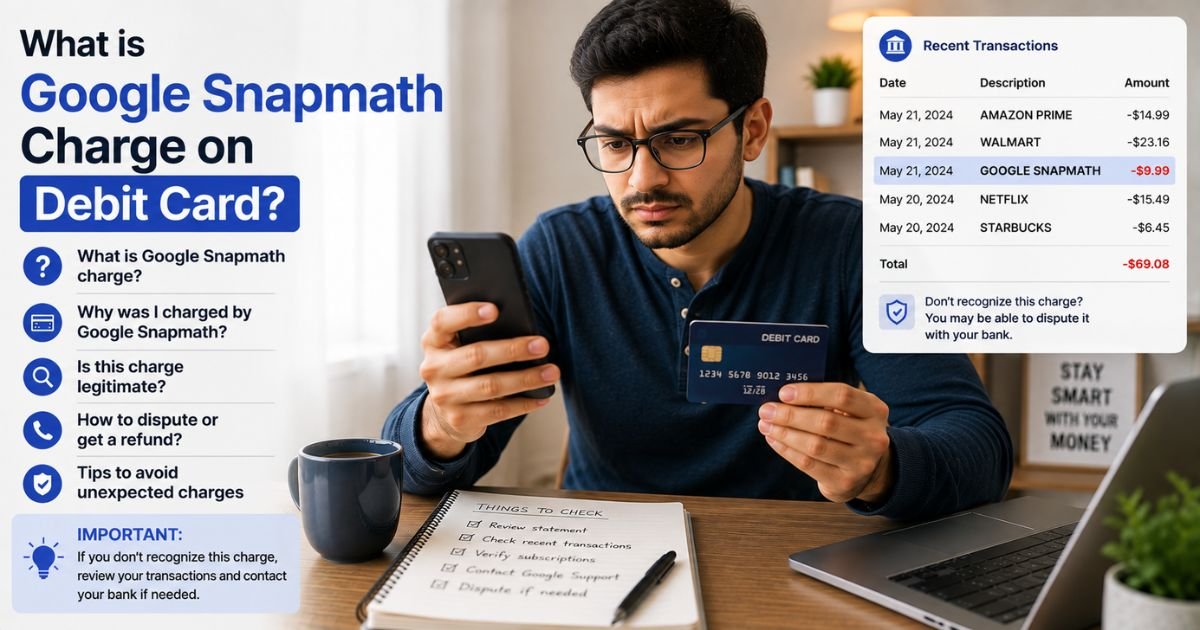
Seeing a Google Snapmath charge on debit card can feel confusing if you do not recall buying a math app. Unfamiliar charges are often tied to in-app purchases or subscriptions.
This guide explains what the charge usually means and what you can do about it.
Table of Contents
What Is the Google Snapmath Charge?
Snapmath (also called SnapMath) is a photo math solver app. You point your phone camera at a math problem and the app shows step-by-step solutions.
The charge appears as Google Snapmath (or a similar name) because payments for the Android version usually go through Google Play Billing. Google processes the payment, so the descriptor often starts with “Google.”
Common statement names include:
- Google Snapmath
- Google*Snapmath
- Snapmath (sometimes with Google in the description)
The app offers free basic use and paid premium options for unlimited scans or extra features. Charges are typically for a subscription.
Reported plan prices often fall around $9.99 per month, with other intervals such as weekly or multi-month options also available. Exact amounts can vary by plan and platform.
Why Did This Charge Appear?
Most people see this charge after downloading or using the Snapmath app.
Common reasons include:
- Starting a free trial that converted to a paid plan
- Buying a premium subscription for unlimited problem solving
- An accidental in-app purchase while exploring the app
- A family member or child using the device and making the purchase
- Auto-renewal of a subscription you started earlier
Because Google handles the billing on Android, the charge shows under a Google-related name even though Snapmath is a third-party app.
How to Verify the Charge
Use this checklist:
- Note the exact date, amount, and full descriptor on your statement.
- Open the Google Play Store or go to payments.google.com and check your order history and subscriptions.
- Search your email for receipts from Google Play or Snapmath around the charge date.
- Look on the device linked to your Google account for the Snapmath app.
- If nothing appears, call the number on the back of your debit card and ask for more merchant details.
Google’s payment history is the best place to start.
Is the Charge Legitimate or Fraud?
Most Google Snapmath charges come from real app purchases or subscriptions processed through Google Play.
Common legitimate explanations
- A premium subscription or trial you or someone on your account started
- An in-app purchase made while using the math solver
- Auto-renewal of an active plan
Warning signs
- No matching purchase or subscription in your Google Play history
- Multiple charges with no app installed on any of your devices
- Charges that continue after you believe you canceled
When to contact the bank
If the charge does not match any activity on your Google account, report it to your bank as possible unauthorized use.
How to Cancel Snapmath
Cancellation is handled through Google Play for Android purchases.
- Open the Google Play Store on your device or go to play.google.com.
- Tap your profile icon, then choose Payments & subscriptions (or Subscriptions).
- Find Snapmath in the list.
- Tap the subscription and select Cancel subscription.
- Follow the prompts and confirm.
You can also manage subscriptions at payments.google.com while signed into the correct Google account.
Cancel before the next renewal date to stop future charges. If the subscription does not appear, contact Google Play support or your bank.
Can You Get a Refund?
Google Play has a refund process for eligible purchases.
You can usually request a refund within a limited time (often around 48 hours for many digital goods, though policies can vary).
Go to your Google Play order history, select the Snapmath charge, and choose the refund option if it is available.
If Google declines the request or the window has passed, contact your bank to dispute the charge. Debit card protections differ from credit cards, so ask your bank about timelines and required information.
Keep screenshots of the charge and any cancellation attempts.
What to Do If the Charge Is Unauthorized
Take these steps:
- Check every Google account linked to your devices for the purchase or subscription.
- Cancel any active Snapmath plan you find.
- Report the charge to your bank as unauthorized and ask them to block similar future transactions.
- Change your Google account password and review connected payment methods.
- Enable purchase authentication (password or biometric) in Google Play settings to prevent future accidental buys.
Act quickly so the bank can investigate while records are fresh.
Prevention Tips
- Require a password or fingerprint for all Google Play purchases.
- Review active subscriptions in the Play Store regularly.
- Use a virtual card or low-limit card for app trials.
- Turn on real-time transaction alerts from your bank.
- Supervise devices used by children or other family members.
- Uninstall apps you no longer use and cancel related plans right away.
FAQs: Google Snapmath Charge on Debit Card
Q. What is the Google Snapmath charge on my debit card?
A. It is typically a payment for the Snapmath photo math solver app or its premium subscription. Google processes the charge when the purchase happens through the Play Store.
Q. How do I cancel a Snapmath subscription?
A. Open the Google Play Store, go to Payments & subscriptions, find Snapmath, and select Cancel. You can also manage it at payments.google.com.
Q. Can I get a refund for a Google Snapmath charge?
A. You may request a refund through your Google Play order history if it is still within the eligible window. If not, contact your bank to dispute the charge.
Q. Is Snapmath an official Google product?
A. No. Snapmath is a third-party math app. Google only handles the billing when you buy or subscribe through the Play Store, which is why the charge often shows with a Google name.
Conclusion
A Google Snapmath charge on debit card usually comes from the Snapmath photo math solver app or a premium subscription processed through Google Play.
Check your Google payment history and active subscriptions first. Cancel any plan you find and request a refund or dispute the charge with your bank if it was unauthorized.
Turning on purchase authentication and reviewing subscriptions regularly helps stop unexpected app charges from repeating.
Disclaimer: This article is for informational purposes only and is not financial or legal advice. App prices, subscription terms, and refund rules can change. Always verify details in your own Google Play account or with your bank for your specific situation.
Meet the Author
