
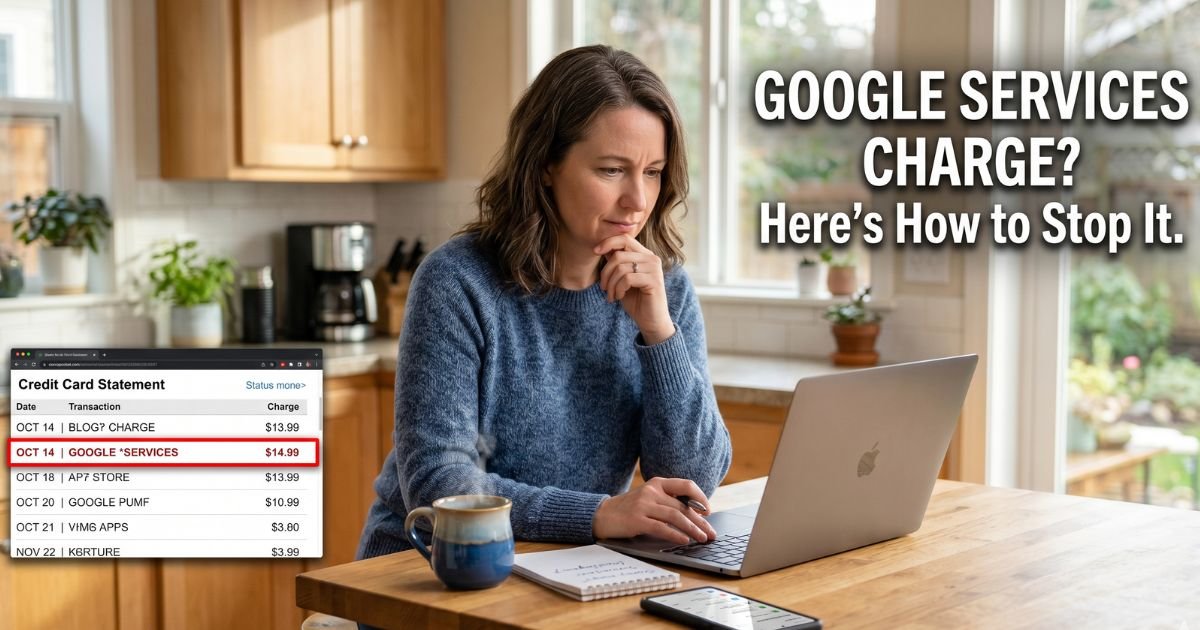
A Google Services charge on a credit card can feel confusing if you don’t recall buying a Google product by that name. Your statement may only say SERVICES. It will not name the app on your TV.
Official Google help still maps this label. Most of these lines are Fiber or YouTube TV, not a mystery store. This guide shows how to match the charge and stop the next one.
Table of Contents
What Is a Google Services Charge on a Credit Card?
A Google Services charge on credit card is a Google billing descriptor. Official Google Pay help says purchases from Google start with GOOGLE* and then name a product or another short label. Banks may cut the rest of the line.
On that official table, *GOOGLE SERVICES is listed for Google Fiber and YouTube TV. An older Payments Center table listed Fiber under the same words. Your issuer may print only SERVICES even when the product is YouTube TV.
You did not need to visit a Google office. Some statements add Mountain View CA, CAUS, or G.CO/HELPPAY. Mountain View is Google LLC’s well-known headquarters city. G.CO/HELPPAY is a Google help short link some banks append. It is not a second merchant.
Google is not one product. Play apps, Ads, Workspace, One storage, and Wallet checks use other official labels. Read every character after GOOGLE*.
How the Charge May Appear
Issuers shorten text. You may see:
- GOOGLE *SERVICES
- GOOGLE*SERVICES
- GOOGLE *SERVICES G.CO/HELPPAY
- GOOGLE *SERVICES MOUNTAIN VIEW CA
- PENDING GOOGLE *SERVICES
- CHECKCARD GOOGLE SERVICES
Nearby Google lines are different products:
| Statement text | Official Google mapping |
|---|---|
| GOOGLE *SERVICES | Fiber or YouTube TV |
| GOOGLE *GOOGLE | Often YouTube Premium |
| GOOGLE* Google Storage | Often Google One or Drive storage |
| GOOGLE *{app or developer} | Google Play app or in-app buy |
| GOOGLE *YouTube Videos | YouTube movie or video purchase |
| GOOGLE *Ads plus an ID | Google Ads |
| GOOGLE WORKSPACE plus letters | Workspace or similar admin billing |
| GOOGLE *TEMPORARY HOLD | Card-check hold, not a finished sale |
| GOOGLE *Devices or GOOGLE STORE | Google Store hardware |
Official Play help says Play purchases print as GOOGLE* plus an app developer, an app name, or a content type such as Books.
If your line does not follow those Play formats, Play help says it did not come from Google Play. Contact your issuer for a non-Google line.
Why You Might See This Charge
Typical sources include:
- A YouTube TV base plan or add-on network
- Google Fiber internet, phone, or mesh add-ons
- A household profile that shares your card
- A first Fiber bill that includes a prorated partial month plus the next full month
- A pending hold that later becomes the posted Fiber or TV charge
Official YouTube TV help lets you cancel or pause any time. Access generally lasts until the end of the paid period. Official YouTube TV refund help says Google does not give refunds or credits for partial billing periods when you cancel.
Official Fiber help says most customers get an emailed bill. Autopay is described as charging the primary method after that email, with one help page placing the draft around the 13th of the month.
Fiber also notes that the first bill can be higher because it may include leftover days in the current month plus the next full month.
A GOOGLE *TEMPORARY HOLD is a separate official label. Google says it checks that a card is valid when you add it or use autofill. Play help says authorizations are not charges you pay and may stay 1 to 14 business days, depending on your bank.
Pro Tip: Sign in at payments.google.com and open Activity, then Subscriptions & services. Official Google One help uses that same payments site to list charges and plans. Check every Google account that might hold the card.
How to Confirm the Charge
Work from Google’s own activity list.
- Copy the full descriptor, date, amount, and last four card digits.
- Sign in at payments.google.com and open Activity.
- Open Subscriptions & services and tap Manage on each plan.
- On Android, open Play Store, then your profile, then Payments & subscriptions.
- For live TV, open YouTube TV in a browser and check Membership.
- For home internet, open your Fiber account bills and emailed statements.
- Ask family members who use the same Google login or the same card.
If the amount matches YouTube TV or Fiber, the charge is generally that product. If Activity is empty on one account, try other emails you use with Google.
Official Payments Center help says to report unauthorized Google charges after you check family buys, canceled orders that still show as pending, and subscriptions. If the line is not from Google, that page says to contact your bank.
Cancel, Pause, or Request a Refund
YouTube TV
Official steps use a web browser, not only the phone app. Go to YouTube TV, open your profile, then Settings, Membership, Manage. Choose Cancel membership, or Pause if you want a break.
Official pause help describes a pause of about 4 weeks to 6 months. Billing resumes at the regular monthly price when the pause ends unless you cancel first. Recordings have separate expiration rules after cancel.
If you joined through a carrier or internet provider, official refund help says YouTube cannot grant that refund. Ask that provider. Apple-billed YouTube purchases follow Apple’s refund path.
Official YouTube TV refund help says approved card refunds typically take 3 to 5 business days and can take up to 10. If the card is closed, the credit may go back to the issuing bank.
Google Fiber
Use the Fiber account to view PDF statements and the card on file. Change the payment method there if the draft should stop using this card. Cancel or move service inside the Fiber account so autopay does not keep billing an address you left.
Play or other Google products
Cancel Play subscriptions in Play payments. Official Play help asks you to report unauthorized Play transactions within 120 days. That window is for Play’s own form. It does not replace your card issuer’s dispute clock.
Removing the card from Google does not cancel YouTube TV or Fiber by itself. Cancel the product first.
Common Mistakes: Canceling YouTube Premium when the line is YouTube TV. Disputing a TEMPORARY HOLD that will drop on its own. Checking only one Google email. Waiting past Play’s 120-day unauthorized form if the buy is a Play app.
Lookalikes That Are Easy to Mix Up
Google prints many short labels.
- YouTube Premium is often GOOGLE *GOOGLE, not SERVICES.
- Google One storage is often Google Storage wording.
- Ads use GOOGLE *ADS plus a customer ID.
- Workspace uses GOOGLE WORKSPACE and part of a domain.
- A Play game prints the developer name, not SERVICES.
A charge that never starts with Google usually is not this merchant. Report that line to your issuer.
If You Do Not Recognize the Charge
Use Google’s official report flow after you search Activity. Then call the number on the back of your card if nothing matches.
For a credit card billing error, federal Fair Credit Billing Act rules generally require a written notice within 60 days after the issuer sent the statement that first showed the charge. The issuer generally has 30 days to acknowledge and 90 days to resolve. Pay the rest of the bill that you do not dispute.
Debit charges follow different Electronic Fund Transfer clocks. Report those quickly.
Closing the card does not cancel Fiber or YouTube TV. Finish cancel in those accounts so the next cycle does not fail and then retry.
FAQs: Google Services Charge on Credit Card
Q. What is a Google Services charge on a credit card?
A. Official Google Pay help maps GOOGLE *SERVICES to Google Fiber and YouTube TV. Banks may hide the product name and print only SERVICES, plus a city or G.CO/HELPPAY link.
Q. Is a Google Services charge a scam?
A. Usually no. It is a published Google descriptor. An unexpected amount can still be a household plan, a Fiber first bill, or unauthorized use. Match payments.google.com before you decide.
Q. How do I cancel so the charge stops?
A. Cancel YouTube TV under Membership in a browser. Manage Fiber in the Fiber account. Cancel other Google plans in Subscriptions & services. Removing the card alone does not end the membership.
Q. How do I get a refund?
A. Use the product’s official refund path. YouTube TV help says no partial-period credits when you cancel, and approved card refunds often post in 3 to 5 business days. Play unauthorized reports have a 120-day form window. Your issuer’s dispute path is separate.
Conclusion
A Google Services charge on a credit card is usually Google Fiber or YouTube TV billed under Google’s GOOGLE *SERVICES label.
Match the date and amount at payments.google.com, then in YouTube TV Membership or your Fiber bill. Cancel inside that product so the next cycle does not draft.
If no Google account shows the sale, use Google’s unauthorized-charge steps and your issuer’s written billing-error window.
Disclaimer: This article is for general information only. It is not financial, legal, or account advice. Descriptors, refunds, and cancel rules vary by Google product and by card issuer. Confirm account-specific questions in official Google Help or with your bank.
Meet the Author
