
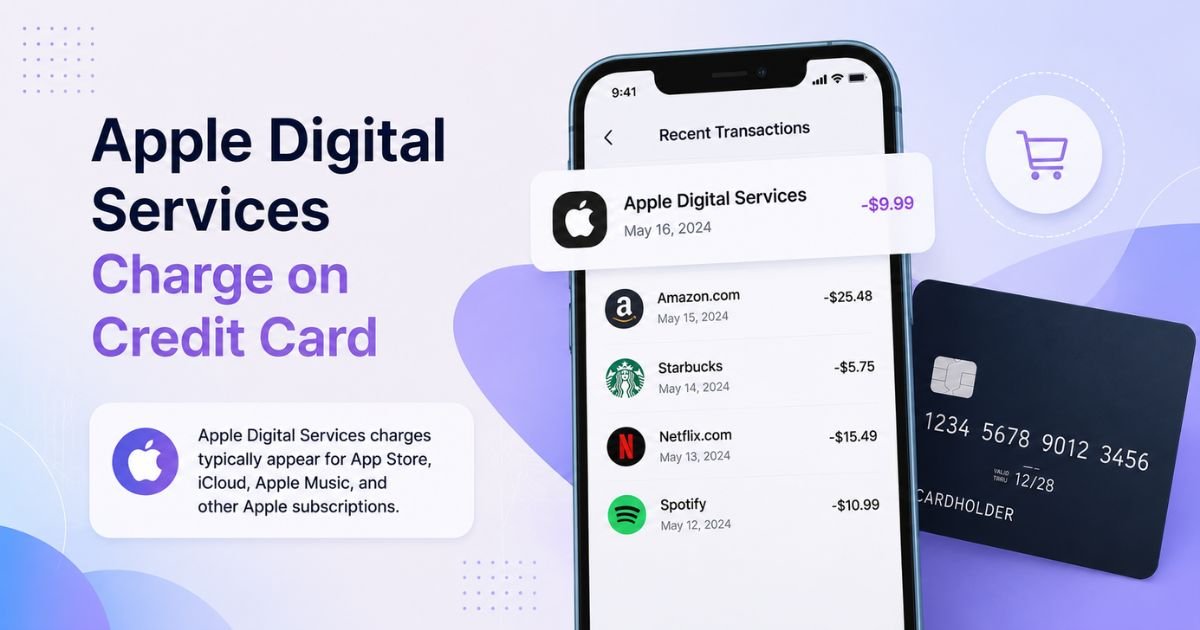
Seeing an Apple Digital Services charge on credit card can feel confusing if you do not recall a recent purchase. These charges are common and usually legitimate. This guide explains what they cover and how to manage them.
Table of Contents
What Is the Apple Digital Services Charge?
Apple Digital Services is the billing name Apple uses for many of its digital content and subscription charges. It often appears instead of a more specific service name.
This charge typically covers:
- App Store purchases and in-app purchases
- Subscriptions such as Apple Music, Apple TV+, iCloud+, Apple Arcade, Apple News+, or Apple One
- Third-party app subscriptions billed through Apple
- Music, movies, TV shows, or books from Apple’s media stores
- Purchases made by family members if you use Family Sharing
You may also see related descriptors like apple.com/bill or Apple Services. Multiple small purchases or renewals can be grouped into one larger charge on your statement.
Why Did This Charge Appear?
Most people see this charge after using an Apple service or making a digital purchase.
Common reasons include:
- A subscription renewing automatically
- Buying an app or making an in-app purchase
- A family member using shared payment methods under Family Sharing
- Downloading media or upgrading iCloud storage
- Several smaller purchases combined into a single billing amount
Apple usually sends an email receipt to the address linked to your Apple ID around the time of the charge. Check your inbox and spam folder for messages from Apple.
How to Verify the Charge
Follow these steps:
- Note the exact date and amount on your credit card statement.
- On an iPhone or iPad, go to Settings > [Your Name] > Media & Purchases > View Account > Purchase History.
- On a Mac, open the App Store, click your name, then Account Settings > Purchase History.
- Or visit reportaproblem.apple.com, sign in with your Apple ID, and review the list of purchases.
- Compare the dates and amounts with your statement. Look for grouped items if the total does not match a single purchase.
If you use Family Sharing, check purchases made by family members as well.
Is the Charge Legitimate or Fraud?
In the large majority of cases, an Apple Digital Services charge is a legitimate purchase or subscription renewal processed by Apple.
Common legitimate explanations
- An active Apple or third-party subscription that auto-renewed
- An app, in-app purchase, or media download
- A Family Sharing purchase charged to the organizer’s payment method
Warning signs
- No matching item in your Purchase History across any Apple ID you use
- Charges that continue after you believe you canceled everything
- Activity you cannot link to any device or family member
When to contact the bank
If nothing appears in your Apple purchase history and you did not authorize the charge, report it to your card issuer as possible unauthorized activity.
How to Cancel Apple Digital Services Subscriptions
You can cancel most subscriptions directly on your device.
- Open Settings and tap your name at the top.
- Tap Subscriptions.
- Select the subscription you want to cancel.
- Tap Cancel Subscription and confirm.
You can also manage subscriptions at reportaproblem.apple.com or through the App Store account settings on a Mac.
Cancel at least one day before the next renewal date to avoid another charge. Access usually continues until the end of the current billing period.
Can You Get a Refund?
Apple allows refund requests for many digital purchases and subscriptions.
Go to reportaproblem.apple.com, sign in, find the item, and select the option to report a problem or request a refund. Explain the reason clearly.
Refund eligibility depends on the type of purchase, how recently it occurred, and Apple’s policies.
If Apple declines the request or you cannot locate the charge in your history, contact your credit card issuer to open a dispute.
Provide the statement details and any screenshots from your Apple account.
What to Do If the Charge Is Unauthorized
Take these steps:
- Check every Apple ID you or family members use for matching purchases.
- Cancel any unrecognized subscriptions immediately.
- Call the number on the back of your credit card and report the charge as unauthorized.
- Ask the issuer to open a dispute and, if appropriate, issue a new card.
- Change your Apple ID password and review devices signed in to your account.
Keep records of your Apple purchase history and all communications with the card issuer.
Prevention Tips
- Review your active subscriptions in Settings regularly.
- Turn on purchase authentication (password, Face ID, or Touch ID) for the App Store.
- Use Family Sharing controls to limit what others can buy.
- Set calendar reminders for subscription renewal dates.
- Enable real-time transaction alerts from your bank.
- Keep your Apple ID email address current so you receive all receipts.
FAQs: Apple Digital Services Charge on Credit Card
Q. What is the Apple Digital Services charge on my credit card?
A. It is Apple’s billing name for digital purchases and subscriptions, including App Store items, Apple Music, iCloud+, Apple TV+, and third-party apps billed through Apple.
Q. How do I see exactly what the charge was for?
A. Check your Purchase History in Settings on your device or visit reportaproblem.apple.com and sign in with your Apple ID. Multiple items may be grouped into one charge.
Q. How do I cancel an Apple subscription?
A. Go to Settings > [Your Name] > Subscriptions, select the service, and tap Cancel Subscription. Confirm the cancellation.
Q. Can I get a refund for an Apple Digital Services charge?
A. Yes, you can request a refund at reportaproblem.apple.com for eligible purchases. If that does not resolve it, dispute the charge with your credit card issuer.
Conclusion
An Apple Digital Services charge on credit card is usually a legitimate payment for apps, media, or subscriptions processed by Apple.
Check your Purchase History and email receipts first.
Cancel any subscriptions you no longer want through your device settings, and contact your card issuer if the charge appears unauthorized.
Reviewing your Apple subscriptions regularly helps you stay in control of these charges.
Disclaimer: This article is for informational purposes only and is not financial or legal advice. Apple’s billing practices, refund policies, and subscription terms can change. Always verify details in your own Apple account or with your card issuer for your specific situation.
Meet the Author
