
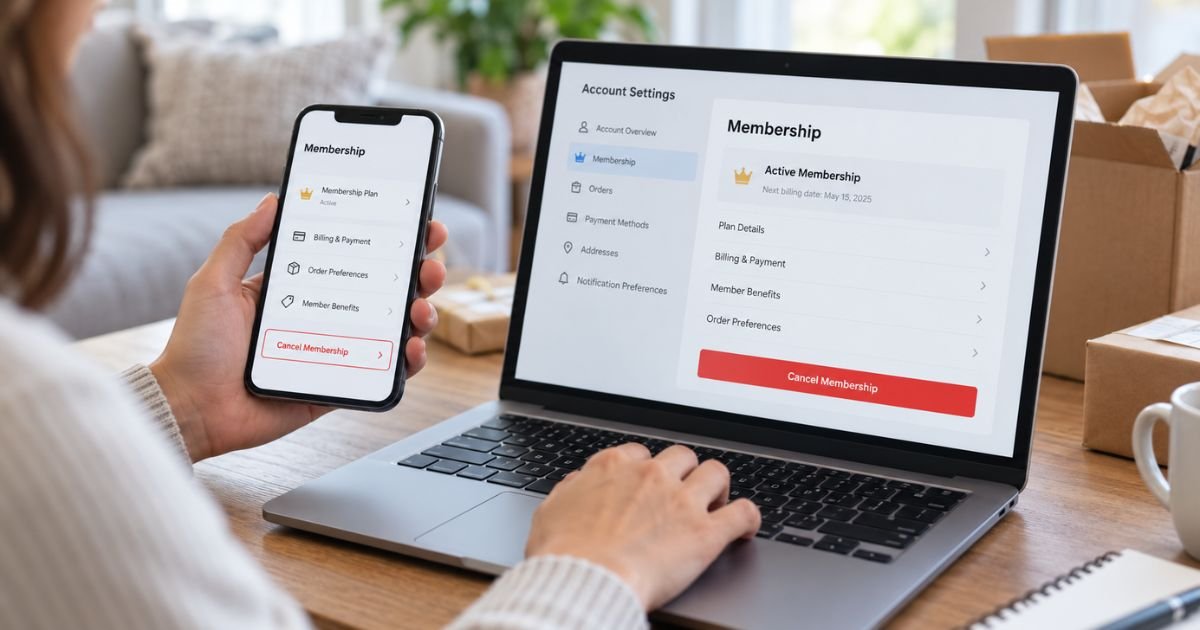
If you want to know how to cancel Amazon Prime membership, sign in to the Amazon account with the active membership, open your Prime membership settings, choose the option to manage or update the membership, and follow the cancellation prompts until Amazon confirms that Prime will end.
Canceling Prime is different from deleting your Amazon account. You can end Prime while keeping your regular Amazon account, order history, payment methods, and ability to shop.
If your membership came through another billing provider, you may need to cancel it through that provider instead. This guide covers desktop, mobile, free-trial, refund, and troubleshooting situations.
Table of Contents
How to Cancel Amazon Prime Membership
Amazon allows members who subscribed directly through Amazon to cancel from their account settings. The wording of individual buttons can change, but Amazon’s current help instructions direct members to their Prime membership page and then to the membership management and cancellation options.
Before you begin, make sure you are signed into the correct Amazon account. People with separate personal, work, or older Amazon accounts sometimes check the wrong account and cannot find the active Prime membership.
You can also look at your membership page to confirm your next renewal date before canceling.
How to Cancel Amazon Prime on a Computer
Using a desktop or laptop browser gives you easy access to the full Amazon account menu.
Follow these steps:
- Sign in to your Amazon account.
- Open Account & Lists.
- Go to your Prime Membership page.
- Look for Manage, Manage Membership, or a similar option.
- Select Update, Cancel and More if that option appears.
- Choose the option to end or cancel the membership.
- Continue through the remaining screens.
- Confirm that you want the membership to end.
Amazon may show information about the benefits you will lose or offer other membership options before the final cancellation screen. Continue until you receive a clear confirmation that the membership has been canceled or will not renew.
Do not close the page after the first cancellation-related button. Make sure you complete every confirmation step.
How to Cancel Amazon Prime on the Mobile App
You can also manage Prime through the Amazon Shopping app.
Menu names can vary slightly depending on the app version, but the general process is:
- Open the Amazon Shopping app.
- Sign in to the account with the Prime membership.
- Open your account or profile area.
- Find your Prime Membership settings.
- Select Manage Membership.
- Look for the option to update or cancel the membership.
- Choose End Membership or the available cancellation option.
- Follow the remaining prompts until cancellation is confirmed.
If you cannot find the option in the app, use a browser and open your Amazon Prime membership page instead.
Customers who originally started certain Prime memberships through the Android Amazon Shopping app may need to manage the subscription through Google subscription services.
How to Cancel an Amazon Prime Free Trial
A Prime free trial can automatically convert to a paid membership if you do not cancel before the trial ends.
To stop that from happening:
- Sign in to Amazon.
- Open your Prime membership settings.
- Check the trial expiration date.
- Select the option to manage or end the membership.
- Follow the cancellation prompts.
- Confirm that the trial will not convert into a paid membership.
Amazon’s Prime trial information states that trial memberships can automatically move to a paid plan unless renewal is stopped before the trial ends.
If you already know you do not want Prime, you do not need to wait until the last day of the trial to cancel. Completing the process early also reduces the risk of forgetting the renewal date.
What Happens After You Cancel Amazon Prime?
The exact result depends on the cancellation option shown for your membership.
In many cases, Amazon may allow the membership to remain active until the end of the period you already paid for. Your cancellation page should show the effective end date before you confirm.
After Prime ends, you may lose membership benefits associated with your plan, which can include eligible Prime shipping and access to Prime-linked digital benefits.
Canceling Prime does not normally delete your regular Amazon account.
You can still:
- Buy products on Amazon
- Access your previous orders
- Manage returns
- Update payment methods
- Use your Amazon account for non-Prime services
You simply stop having the benefits that depend on an active Prime membership.
Can You Get a Refund After Canceling Amazon Prime?
Possibly, but cancellation does not guarantee a refund.
Amazon’s Prime terms have generally based refund eligibility on when you cancel and whether Prime benefits have been used during the relevant membership period.
For members who subscribed directly through Amazon, the applicable refund option should be displayed during cancellation or available through Amazon customer service.
For example, Amazon’s published cancellation terms provide stronger refund eligibility in certain cases where a newly paid membership is canceled shortly after signup, while use of Prime benefits can affect the amount available.
Because refund eligibility depends on your specific membership activity and billing situation, check the amount Amazon shows during cancellation rather than assuming you will automatically receive the full fee back.
If you think you qualify but no refund appears, contact Amazon customer service after cancellation.
What if Amazon Prime Just Renewed?
If you notice a Prime charge shortly after renewal and no longer want the membership, cancel as soon as possible.
First:
- Open your Prime membership settings.
- Complete the cancellation.
- Check whether Amazon displays a refund.
- Review whether Prime benefits have been used since the renewal.
- Contact Amazon support if the refund information is unclear.
Do not keep using Prime shipping or other benefits while expecting an unused-membership refund. Benefit usage may affect refund eligibility under Amazon’s membership terms.
Save any confirmation email or cancellation screen until the refund or membership termination is fully resolved.
How to Cancel Prime if You Signed Up Through a Third Party
Not every Prime membership is billed directly by Amazon.
A membership may sometimes be linked to another company or subscription platform. If that company controls the billing, you may need to cancel through it rather than through Amazon.
Check:
- Your credit card statement
- Membership confirmation email
- Amazon membership page
- Google Play subscriptions
- The account of the company that bundled Prime with another service
Amazon’s subscription terms state that memberships purchased through third parties may be subject to that provider’s cancellation and refund process.
If Amazon shows that another provider manages your membership, follow that provider’s instructions.
Amazon Prime vs. Prime Video: Know What You Are Canceling
Amazon Prime and a standalone Prime Video subscription are not always the same thing.
A full Amazon Prime membership can include several benefits, including Prime Video access. A customer may also have a separate video-related subscription or add-on.
If your goal is to cancel the entire Prime membership, use the Prime membership management page.
If you only want to cancel a separate video subscription, review your Prime Video account or your Memberships & Subscriptions section instead.
This distinction matters because canceling one digital subscription may not cancel the full Prime membership.
Review the name and billing amount of the subscription before confirming cancellation.
Does Deleting the Amazon App Cancel Prime?
No. Removing the Amazon Shopping app from your phone does not cancel your membership.
The Prime membership is connected to your Amazon account, not simply to the app installed on your device.
Similarly, these actions should not be treated as Prime cancellation:
- Signing out of Amazon
- Deleting the Amazon app
- Removing a saved credit card
- Turning off shopping notifications
- Canceling an Amazon order
You need to formally end the Prime membership through the appropriate membership or billing settings.
Do You Need to Delete Your Amazon Account?
No. If your only goal is to stop paying for Prime, do not delete your entire Amazon account.
Closing an Amazon account is a much broader action. Amazon says permanent account closure affects services and information connected with that account, including Prime memberships and order-related account features.
Canceling Prime lets you keep the Amazon account for regular purchases and account management.
Account closure should only be considered if you actually want to stop using the Amazon account itself.
What if You Cannot Find the Cancel Button?
First, verify that you are using the account that actually has Prime.
Then check:
- Whether Prime is already scheduled to end
- Whether a different Amazon account holds the membership
- Whether Google Play manages the subscription
- Whether another company provides the membership
- Whether you have Prime Video rather than a full Prime membership
If you are still unable to cancel, contact Amazon customer service and ask them to check which company manages the membership.
Avoid creating a second membership while troubleshooting the first one.
How to Confirm Amazon Prime Is Canceled
After completing the cancellation process, return to your Prime membership page.
Look for information indicating:
- The membership is ending
- Automatic renewal has stopped
- An expiration date is shown
- No new renewal is scheduled
You may also receive a confirmation email.
Save that message or take a screenshot of the cancellation status. If another Prime charge later appears, this record can help establish when you canceled.
Also check your payment account after the former renewal date to make sure no unexpected Prime payment has been processed.
FAQs: How to Cancel Amazon Prime Membership
Q. Can I cancel Amazon Prime anytime?
A. Yes. If you subscribed directly through Amazon, you can generally cancel through your Prime membership settings. If another company bills the membership, you may need to cancel through that provider.
Q. Will Amazon refund me if I cancel Prime?
A. A refund may be available depending on when you cancel and whether Prime benefits have been used during the current membership period. Check the refund information Amazon displays during cancellation.
Q. Does canceling Prime delete my Amazon account?
A. No. Canceling Prime normally ends the membership while leaving your Amazon shopping account active.
Q. Can I cancel Prime before my free trial ends?
A. Yes. Cancel before the trial’s renewal deadline if you do not want it to convert into a paid membership.
Conclusion
Knowing how to cancel Amazon Prime membership mainly involves opening your Prime membership settings, selecting the management or cancellation option, and continuing until Amazon confirms the membership will end.
After canceling, verify the end date, save the confirmation, and check whether a refund applies to your situation. If Amazon does not control the billing, cancel through the third-party provider that manages your membership.
Disclaimer: This article provides general educational information about Amazon Prime membership management. Amazon may change its menus, membership features, refund terms, and cancellation procedures. Review the current information displayed in your Amazon account before making subscription or billing decisions.
Meet the Author
