
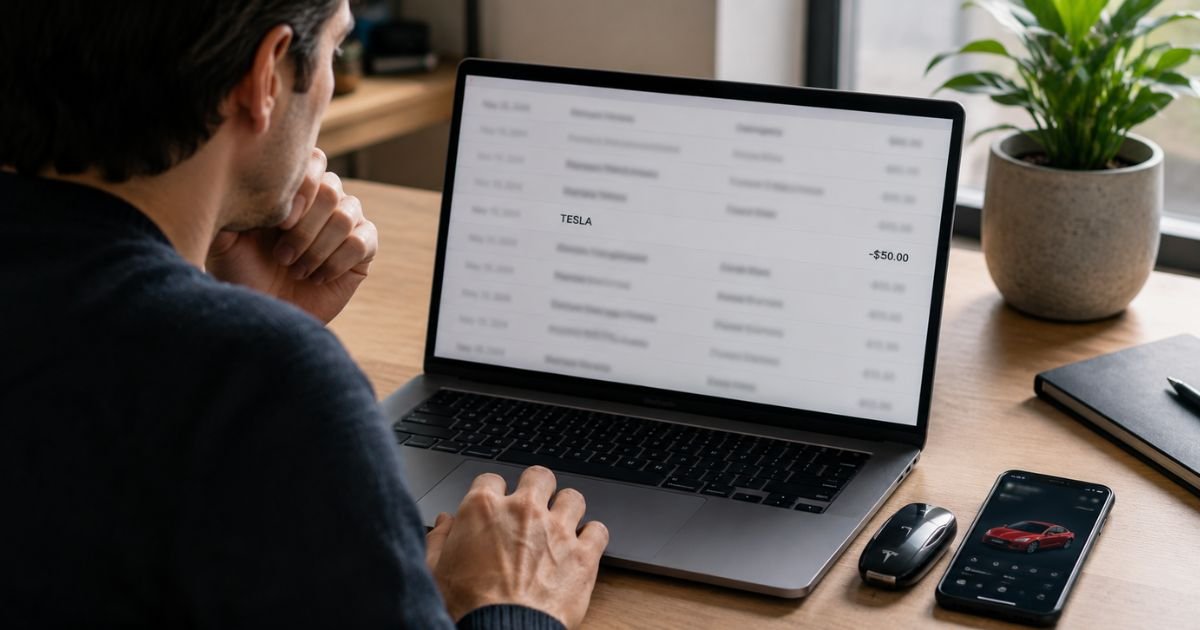
Seeing a Tesla Motors charge on your bank or credit card statement can feel unexpected, especially if you do not remember making a recent purchase. Many Tesla owners notice these line items and wonder if they are legitimate.
This guide explains what the charge on bank statement is, why it appears, how to verify it, and what steps to take if something looks wrong.
Table of Contents
What Is the Tesla Motors Charge?
Tesla, Inc. (formerly Tesla Motors) is the electric vehicle and energy company. Charges from Tesla can appear under several similar descriptors depending on the payment type and location:
- TESLA MOTORS
- TESLA, INC. or TESLA INC
- TESLA, INC. PALO ALTO CA
- TESLA MOTO TESLA MOTORS
- TESLA
These charges usually come from one of Tesla’s core services: vehicle ownership costs, charging, software subscriptions, or energy products. Tesla applies charges to the payment method saved in your Tesla Account.
Why Did This Charge Appear?
Common reasons include:
- Supercharging – Pay-per-use sessions at Tesla Superchargers. The amount varies by location, time, and energy used.
- Premium Connectivity – Monthly or annual subscription for live traffic, satellite maps, video streaming, and other in-car features. Current pricing is typically $9.99 per month or $99 per year plus tax.
- Full Self-Driving (FSD) – One-time purchase or monthly subscription fee.
- Service or repairs – Work done at a Tesla Service Center, including parts or mobile service.
- Vehicle payments – Monthly lease or loan payments processed by ACH or card.
- Energy products – Solar, Powerwall, or related billing.
- Software upgrades or accessories – Purchases made through the Tesla app or website.
Family members or other drivers authorized on the vehicle can also trigger charges that post to the primary account holder’s payment method.
How to Verify the Charge
Use this checklist:
- Note the exact date, amount, and full descriptor on your statement.
- Open the Tesla app or sign in at tesla.com with the account linked to the vehicle or energy product.
- Check Charging History for Supercharger sessions (app path often includes Account > Charging > History).
- Review billing history, documents, or invoices in your Tesla Account for matching dates and amounts.
- Look for Premium Connectivity, FSD, or other subscription details under account settings or upgrades.
- Check your email for Tesla receipts or invoices.
Matching the date and amount to an entry in your Tesla account almost always confirms the charge is legitimate.
Is It Legitimate or Fraud?
Legitimate scenarios are the most common:
- You or an authorized driver used a Supercharger.
- Premium Connectivity or another subscription renewed.
- A service visit or scheduled vehicle payment posted.
- An energy product bill was processed.
Warning signs that need attention:
- Multiple large charges with no matching activity in your Tesla account.
- Charges continue after you remove the payment method.
- You have never owned a Tesla vehicle or energy product linked to that payment method.
- The amount does not match any known service or subscription.
Tesla states that anyone who uses your vehicle can generate charges that bill to the payment method on file, and you remain responsible for them.
How to Cancel or Manage Future Charges
Premium Connectivity or other subscriptions
Log into the Tesla app or website, go to your account settings or the vehicle’s connectivity options, and turn off automatic renewal. You keep benefits until the end of the current period.
Supercharging
Update or remove the payment method in the Tesla app under Charging > Manage Payment. You can also set spending limits or require confirmation in some cases.
Vehicle or energy payments
Contact Tesla through the app or account portal to update payment methods or adjust autopay settings. For solar or Powerwall billing, use the Billing Portal in your Tesla Account.
After making changes, monitor your statements for one or two cycles to confirm the charges have stopped.
Can You Get a Refund?
Refund eligibility depends on the type of charge:
- Supercharging sessions are generally final once completed, though Tesla may review disputes for errors.
- Subscriptions can often be canceled going forward; partial refunds for unused time are not always available.
- Service or one-time purchases may be eligible for review if there was a clear error.
Contact Tesla support through the app, website, or by phone at (877) 798-3752 and provide the transaction details. Have your Tesla account information and the exact charge date and amount ready.
If Tesla does not resolve it, you can dispute the charge with your bank or card issuer. Act within your issuer’s time limits (often 60 days).
What to Do If the Charge Is Unauthorized
- Log into your Tesla account and review all recent activity and linked payment methods.
- Remove or update any payment methods you do not recognize.
- Contact Tesla support through the app or at (877) 798-3752 and report the charge.
- Document everything: screenshots of the statement, Tesla account history, and support interactions.
- If Tesla cannot identify or reverse the charge, contact your bank or credit card issuer to dispute it and request a new card if needed.
- Monitor your accounts for additional activity and consider placing a fraud alert if necessary.
Prevention Tips
- Keep only one trusted payment method on file in your Tesla account.
- Turn on real-time transaction alerts for every bank and credit card.
- Review the Tesla app’s Charging History and account billing section regularly.
- Set Supercharging payment confirmations or limits where available.
- Cancel unused subscriptions such as Premium Connectivity if you do not need the features.
- Use a dedicated secondary card for Tesla-related expenses when possible.
- After selling or transferring a vehicle, confirm all payment methods and subscriptions are removed.
- Check email regularly for Tesla invoices so you can match them to statements quickly.
Common Descriptor Variations
| Statement Text | Typical Meaning |
|---|---|
| TESLA MOTORS | General Tesla charge |
| TESLA, INC. PALO ALTO CA | Often connectivity or account charges |
| TESLA INC / TESLA, INC. | Company billing |
| TESLA MOTO TESLA MOTORS | Variant of Tesla Motors descriptor |
| Supercharger-related lines | Pay-per-use charging sessions |
FAQs: Tesla Motors Charge on Bank Statement
Q. Why is there a small charge around $10 from Tesla?
A. This is frequently the monthly Premium Connectivity fee plus tax. Check your Tesla account under connectivity or billing history to confirm.
Q. Can someone else driving my Tesla create charges on my card?
A. Yes. Tesla bills the payment method linked to the vehicle owner’s account for services used by any driver.
Q. How do I see a full list of Tesla charges?
A. Sign in to your Tesla account or app and review Charging History, Documents/Invoices, and billing or subscription sections. Email receipts also provide details.
Q. What if I no longer own the Tesla but still see charges?
A. Contact Tesla support immediately, remove all payment methods from the old account, and dispute any post-sale charges with your bank if needed.
Conclusion
A Tesla Motors charge on bank statement is usually tied to Supercharging, Premium Connectivity, service, or another legitimate Tesla product or service.
The fastest way to confirm it is to log into your Tesla account or app and match the date and amount. Managing payment methods and subscriptions in the Tesla app helps prevent future surprises.
If the charge does not match any activity, contact Tesla support promptly and follow up with your bank if necessary.
Disclaimer: This article is for informational purposes only and is not financial, legal, or professional advice. Pricing, policies, and contact details can change. Always verify current information directly with Tesla and your bank or card issuer.
Meet the Author
