
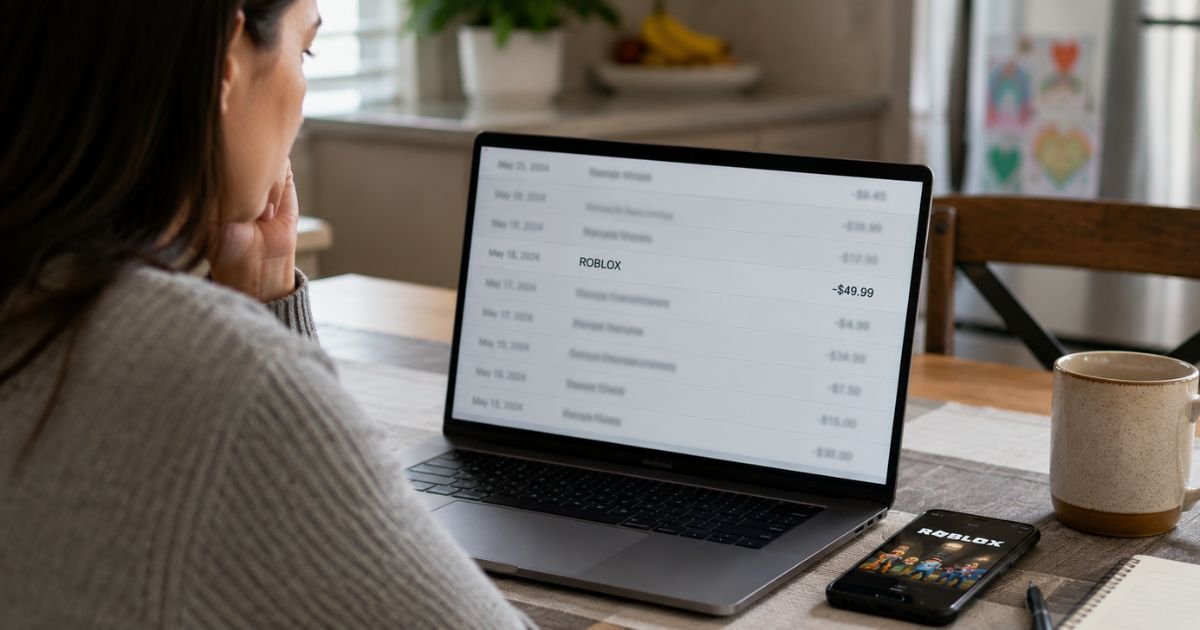
Seeing a Roblox charge on bank or credit card statement can be confusing, especially if you do not play the game yourself. Many parents notice these charges after a child or family member makes an in-game purchase.
This guide explains what the charge is, why it shows up, how to confirm it, cancel if needed, and what to do if it looks unauthorized.
Table of Contents
What Is the Roblox Charge?
Roblox is a popular online platform where users create and play games. The company behind it is Roblox Corporation.
Charges appear when someone buys Robux, starts or renews Roblox Premium, or makes other in-game purchases.
On your statement the charge may show under several different names depending on how the payment was processed:
- ROBLOX or ROBLOX.COM
- ROBLOX CORP or ROBLOX CORPORATION
- ROBLOX 888-858-XXXX CA
- BILL.ROBLOX.COM
- Xsolla*Roblox or XSOLLA *ROBLOX
- APPLE.COM/BILL (iOS purchases)
- GOOGLEROBLOX or GOOGLE PLAYROBLOX (Android)
- PAYPAL*ROBLOX
Common amounts include $4.99, $9.99, $19.99, $49.99, and $99.99 for Robux packs. Roblox Premium subscriptions typically range from $4.99 to $19.99 per month depending on the tier.
Xsolla is a third-party payment processor that Roblox uses in some cases. Small temporary verification charges (often $0.20 to $0.90) may appear and usually reverse within a few business days.
Why Did This Charge Appear?
Here are the most common reasons a Roblox charge shows up:
- A child or family member bought Robux or an in-game item using a saved payment method.
- Someone started or renewed a Roblox Premium subscription.
- You or another authorized user made a one-time purchase on the website, app, or console.
- A payment method was linked to a Roblox account and used without your knowledge.
- A small Xsolla verification charge posted while adding a new card.
- A free trial or promotional offer converted to a paid subscription.
Roblox is especially popular with younger users. Many unexpected charges happen when parental controls or purchase passwords are not enabled.
How to Verify the Charge
Follow this checklist:
- Note the exact date, amount, and full billing descriptor on your statement.
- Check whether the charge includes “Xsolla” in the name.
- Ask household members (especially kids) if they made any recent Roblox purchases.
- Log into the Roblox account linked to the payment method and review the purchase history.
- Search your email for receipts from Roblox, Xsolla, Apple, Google, or PayPal.
- If the descriptor starts with “Xsolla*Roblox,” contact Xsolla support. Otherwise, contact Roblox support.
Matching the date and amount to a known Roblox username or receipt usually confirms the charge is real.
Is It Legitimate or Fraud?
Legitimate scenarios are very common:
- A family member bought Robux or Premium with a card that was already saved.
- You authorized the purchase but forgot about it.
- A small Xsolla verification charge posted and will reverse.
Warning signs that need attention:
- Multiple charges in a short time with no matching activity in any known Roblox account.
- Charges continue after you remove the payment method.
- You have never created or allowed a Roblox account linked to that card.
- Large amounts that do not match standard Robux or Premium prices.
Roblox treats unauthorized purchases as a violation of its Terms of Use and may close related accounts.
How to Cancel Roblox Premium or Stop Future Charges
To cancel a Roblox Premium subscription:
On the Roblox website or desktop app:
- Log into the account that has Premium.
- Click the gear icon and go to Settings.
- Select Subscriptions.
- Click Cancel Renewal and confirm.
If purchased through Apple (iOS):
Go to your device Settings → Apple ID → Subscriptions → find Roblox and cancel.
If purchased through Google Play (Android):
Open the Google Play Store → profile icon → Payments & subscriptions → cancel Roblox.
If purchased through another platform (Xbox, PlayStation, etc.), cancel through that store’s subscription settings.
To prevent future one-time purchases:
- Remove the payment method from the Roblox account.
- Enable purchase authentication or parental controls on the device.
- Set up a PIN or password for in-app purchases on Apple, Google, or console accounts.
After canceling, you keep Premium benefits until the end of the current billing period.
Can You Get a Refund?
Roblox has a permissive refund policy for unauthorized purchases in many cases, but the process depends on the payment method.
Important: Contact Roblox (or Xsolla if the charge shows Xsolla) before disputing the charge with your bank. Once you dispute it, Roblox cannot issue a refund because of the payment provider’s process.
Steps for refunds:
- Gather the list of charges by date and amount, last four digits of the card, billing name, and Roblox username if known.
- If the statement says “Xsolla*Roblox,” go to help.xsolla.com.
- If it says “Roblox” without Xsolla, go to roblox.com/support and submit a request.
- For Apple, Google Play, Microsoft, PlayStation, Amazon, or similar platform purchases, request the refund directly from that company. Roblox cannot refund those.
Refunds are not guaranteed for every purchase, especially intentional in-game spends. Act quickly for the best chance of success.
What to Do If the Charge Is Unauthorized
- Contact Roblox support (or Xsolla if applicable) right away through the official support form and provide full transaction details.
- Do not dispute the charge with your bank until after you have contacted Roblox support.
- Remove the payment method from any Roblox accounts.
- Enable strong parental controls and purchase PINs on all devices.
- If Roblox cannot help or the charges continue, then contact your bank or card issuer to report unauthorized activity and request a new card if needed.
- Monitor the account and statements for additional charges.
- Consider reporting the issue to the Federal Trade Commission at ReportFraud.ftc.gov if fraud is involved.
Roblox may close accounts linked to unauthorized purchases.
Prevention Tips
- Turn on real-time transaction alerts for every card and bank account.
- Require a password or biometric approval for all in-app purchases on phones, tablets, and consoles.
- Use Roblox parental controls and set spending limits where available.
- Prefer gift cards over linking a credit or debit card for kids’ accounts.
- Review statements weekly, especially if children use devices linked to your payment methods.
- Remove saved cards from Roblox accounts when they are no longer needed.
- Talk with family members about asking permission before making purchases.
- Keep a simple list of active subscriptions and game accounts.
- For shared devices, create separate child accounts with restricted spending.
Common Descriptor Variations
| Statement Text | Typical Source |
|---|---|
| ROBLOX or ROBLOX.COM | Direct Roblox purchase |
| ROBLOX CORP / CORPORATION | Roblox Corporation |
| Xsolla*Roblox | Payment processed by Xsolla |
| APPLE.COM/BILL | Purchase through Apple/iOS |
| GOOGLE*ROBLOX | Purchase through Google Play |
| PAYPAL*ROBLOX | Payment made with PayPal |
FAQs: Roblox Charge on Bank Statement
Q. Why do I see small charges under $1 from Roblox or Xsolla?
A. These are often temporary verification charges used when adding a new payment method. They usually reverse within 1–10 business days.
Q. Can my child make purchases without me knowing?
A. Yes, if a payment method is saved and purchase authentication is turned off. Enabling PINs and parental controls prevents most unexpected charges.
Q. Will disputing the charge with my bank get my money back faster?
A. Not necessarily. Roblox asks you to contact them first. Disputing before contacting support can block a direct refund and may lead to account closure.
Q. How do I stop all future Roblox charges?
A. Remove the payment method from the Roblox account, cancel any Premium subscription, and turn on purchase protections on every device the account is used on.
Conclusion
A Roblox charge on bank statement is usually a legitimate purchase of Robux or a Premium subscription, often made by a family member.
Check the exact descriptor, match it to a known account or receipt, and contact Roblox or Xsolla support before disputing with your bank.
Canceling Premium and enabling purchase controls are the best ways to avoid future surprises.
Staying proactive with alerts and parental settings keeps these charges under control.
Disclaimer: This article is for informational purposes only and is not financial, legal, or professional advice. Policies, contact details, and refund practices can change. Always confirm current information directly with Roblox, Xsolla, the relevant app store, and your bank or card issuer.
Meet the Author
